.pulse-btn { display: inline-block; padding: 12px 28px; background-color: #0066ff; color: white; font-weight: bold; text-decoration: none; border-radius: 9999px; /* pill shape */ transition: transform 0.2s ease; animation: pulse 1.5s infinite; } .pulse-btn:hover { transform: scale(1.05); } @keyframes pulse { 0% { box-shadow: 0 0 0 0 rgba(0,102,255,.7); } 70% { box-shadow: 0 0 0 15px rgba(0,102,255,0); } 100% { box-shadow: 0 0 0 0 rgba(0,102,255,0); } } /* Optional: respect reduced motion */ @media (prefers-reduced-motion: reduce){ .pulse-btn { animation: none; } }

How to Assign a SAP in the FMCSA Clearinghouse (Step-by-Step Guide)
Assigning a SAP (Substance Abuse Professional) in the FMCSA Clearinghouse is a mandatory step for drivers with DOT drug or alcohol violations to begin the Return-to-Duty (RTD) process. Here’s a quick breakdown of what you need to know:
- Who Needs This? Any driver with a recorded DOT violation who wants to return to safety-sensitive duties like operating commercial vehicles.
- Why Is It Important? Without assigning a SAP, you cannot complete the RTD process, which includes assessments, education/treatment, and follow-up testing.
- How Does It Work?
- What Happens Next? The SAP will report your assessment and RTD eligibility dates to the Clearinghouse. Employers finalize the process with a negative RTD test result.
Delays or errors in assigning a SAP can prolong your “Prohibited” status, potentially leading to a CDL downgrade. Follow the steps carefully to stay compliant and return to work promptly.
Requirements for Accessing the FMCSA Clearinghouse
Account Registration and Login.gov Credentials
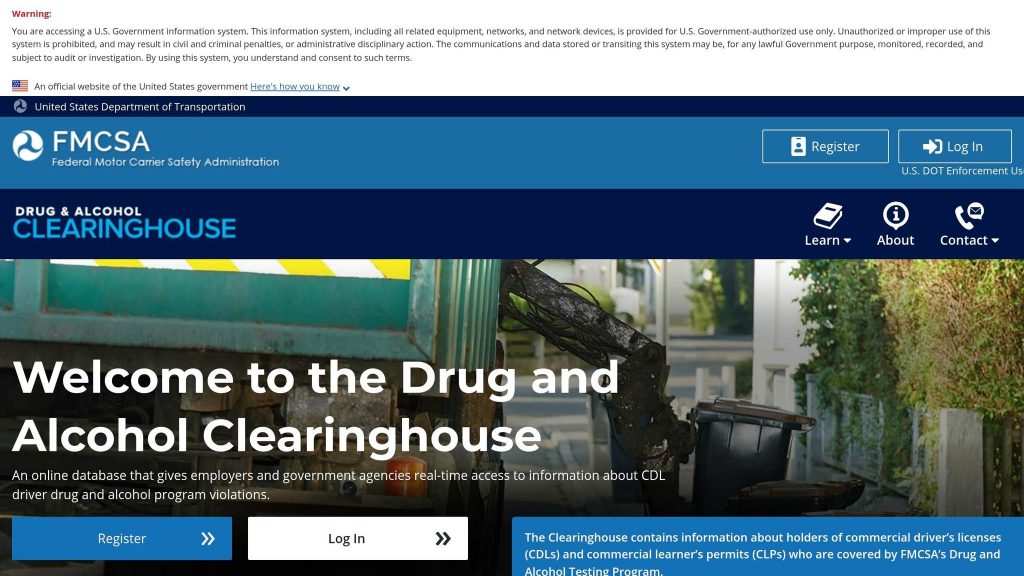
To access the FMCSA Clearinghouse, start by creating a Login.gov account. This step is mandatory for all users, including drivers, employers, SAPs (Substance Abuse Professionals), and C/TPAs (Consortium/Third-Party Administrators).
The system uses two-factor authentication (2FA) for security. You’ll need to set up two verification methods, such as SMS, phone calls, an authentication app, or a physical security key. Your password must be at least 12 characters long. After setting up your Login.gov account, you’ll be redirected to the Clearinghouse to select your role.
Drivers must verify their Commercial Driver’s License (CDL) or Commercial Learner’s Permit (CLP) information during registration. This information is cross-checked with the Commercial Driver’s License Information System (CDLIS). If verification fails after two attempts, you’ll need to contact FMCSA directly to resolve the issue before accessing your record or responding to consent requests. To avoid delays in receiving important updates about your safety-sensitive status, choose “Email” as your preferred contact method during setup.
If you’re an owner-operator with your own USDOT number, register as both an “Employer” and a “Driver” simultaneously. Employers who already have an FMCSA Portal account can link it to the Clearinghouse, which simplifies the registration process. SAPs and MROs (Medical Review Officers) must provide their professional credentials or license details and certify their qualifications as required by DOT regulations.
Additionally, review the permissions needed to complete your SAP designation within the Clearinghouse.
Required Queries and Driver Permissions
Employers need your explicit consent to access your Clearinghouse record. As outlined in 49 C.F.R. § 382.703(a):
No employer may query the Drug and Alcohol Clearinghouse to determine whether a record exists for any particular driver without first obtaining that driver’s written or electronic consent.
For full pre-employment screenings, you must grant electronic consent through your Driver Dashboard. Limited queries, however, only require general written consent provided externally. If you choose not to provide consent, your employer will be notified and cannot allow you to perform safety-sensitive duties.
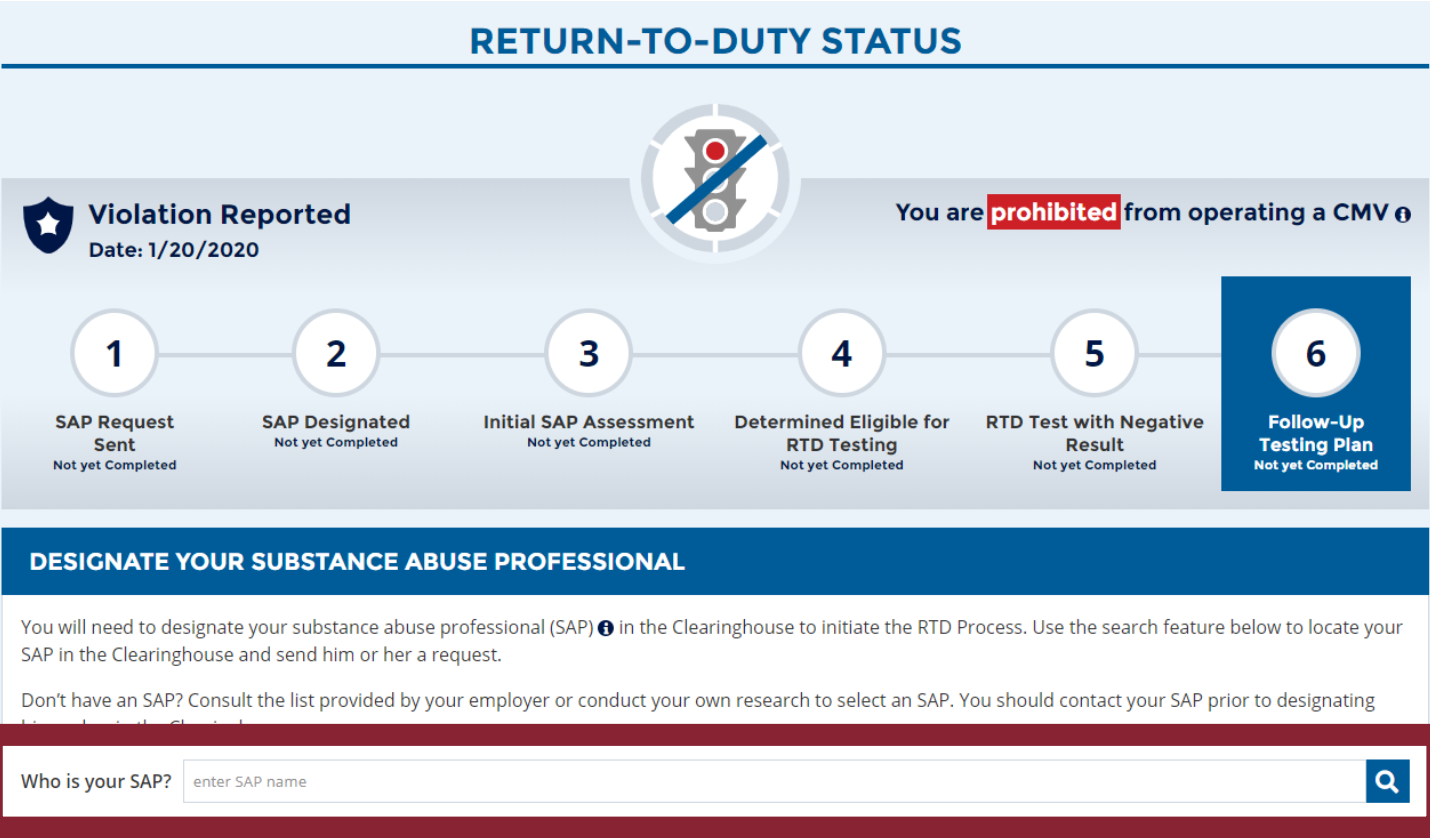
To designate a SAP, both you and the SAP must be registered in the Clearinghouse. Use your Driver Dashboard to search for your SAP and send them a designation request. According to FMCSA guidelines:
SAPs may not access a driver’s violation information in the Clearinghouse.
Completing the SAP designation allows the SAP to report your initial assessment date and Return-to-Duty (RTD) eligibility once you authorize them. Following these steps ensures the designation process moves forward without unnecessary delays.
Ready to book your evaluation?
It’s confidential and takes about 60 seconds to get matched to the right evaluation and a qualified substance abuse professional.
Find My EvaluationHow to Assign a SAP in the FMCSA Clearinghouse
Step 1: Log Into the FMCSA Clearinghouse
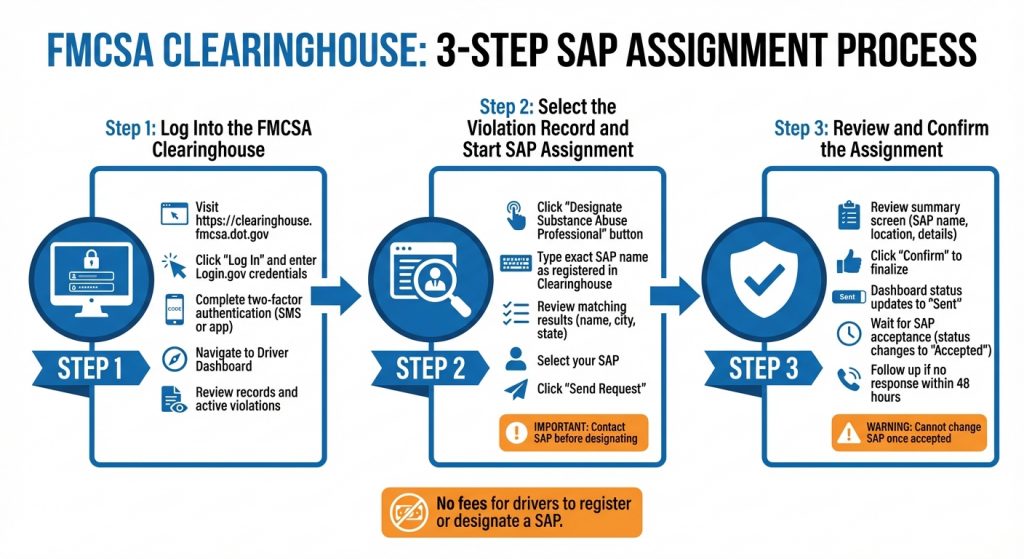
Head over to https://clearinghouse.fmcsa.dot.gov and click on “Log In.” Enter your Login.gov credentials, then complete the two-factor authentication process using either SMS or an app. Once you’re logged in, navigate to your Driver Dashboard, where you can review your records and any active violations. From here, you’ll move on to assigning a SAP.
Step 2: Select the Violation Record and Start SAP Assignment
If you have a violation, it will be listed on your Driver Dashboard. Look for a button labeled “Designate Substance Abuse Professional” and click it to begin. In the search field that appears, type the exact name of the SAP you want to designate, as it appears in their Clearinghouse registration. The system will show matching results, including the SAP’s name, city, and state. Select your SAP and hit “Send Request” to notify them.
Before assigning a SAP, confirm their registration in the Clearinghouse. If their name doesn’t appear in the search results, double-check the spelling to ensure it matches their registered name exactly. The FMCSA advises drivers to contact their SAP directly before making the designation: “Drivers are instructed to make contact with their SAP before designating him/her in the Clearinghouse”.
Step 3: Review and Confirm the Assignment
Once you’ve selected a SAP, the system will display a summary screen with the SAP’s name, location, and other details. Carefully review this information to confirm you’ve chosen the right person. Then, click “Confirm” to finalize the designation. Your Driver Dashboard will update the status to “Sent.”
When the SAP accepts your request, the status will change to “Accepted.” If the SAP doesn’t respond within 48 hours, reach out to them to ensure they’ve received the notification.
It’s important to note that once a SAP accepts and begins the evaluation process, switching to a different SAP is challenging and only allowed in specific situations, like if the SAP becomes unavailable. Also, drivers won’t incur any fees for registering, designating a SAP, or accessing their own records in the Clearinghouse.
SAP Reporting Requirements After Assignment
Reporting Initial Assessment and Follow-Up Dates
After a SAP (Substance Abuse Professional) agrees to take on your case, they must report two key dates to the Clearinghouse. The first is the date of your initial in-person assessment, which determines the type of education or treatment you need. The second is the date they decide you’re eligible for return-to-duty (RTD) testing, which happens after you’ve successfully completed the prescribed education or treatment plan.
It’s important to note that SAPs do not upload treatment plans, clinical reports, or follow-up testing schedules to the Clearinghouse. Instead, these documents are sent directly to your employer through traditional methods outside the Clearinghouse system. The Clearinghouse is only used to track these two milestone dates to monitor your compliance.
There’s a strict order for how these dates must be reported. The SAP must first log the date of the initial assessment before they can enter the RTD eligibility date. This sequence ensures the system accurately reflects your progress through the RTD process. Entering the RTD eligibility date out of order is not allowed.
Next-Business-Day Reporting Requirement
SAPs operate under tight timelines for reporting. Both the initial assessment date and the RTD eligibility date must be submitted by the end of the next business day after the event occurs. For instance, if the assessment takes place on a Tuesday, the SAP must report it by close of business on Wednesday.
If a SAP misses this deadline, they are required to submit a written explanation for the delay before the system will accept the late entry. Once the RTD eligibility date is reported and your employer submits a negative RTD test result, you’re cleared to resume safety-sensitive duties.
| Responsible Entity | Information to Report | Reporting Deadline |
|---|---|---|
| Substance Abuse Professional (SAP) | Date of initial SAP assessment | By the close of the business day following the assessment |
| Substance Abuse Professional (SAP) | Date driver is determined eligible for RTD testing | By the close of the business day following the determination |
| Employer | Negative RTD test result | By the close of the third business day after receiving results |
| Employer | Completion of follow-up testing plan | By the close of the third business day after completion |
Up next, we’ll explore common mistakes made during SAP assignments and how to avoid them.
Common Errors in SAP Assignment and How to Avoid Them
Errors in Entering SAP Credentials
One common mistake drivers make is misspelling the SAP’s name during the search process. The system requires an exact match with the name the SAP used when registering. Even a minor typo or single letter off can prevent the SAP from appearing in your search results.
Another issue arises when drivers attempt to designate a SAP who isn’t registered in the Clearinghouse. For a SAP to accept your designation or enter return-to-duty information, they must be actively registered. Before starting, double-check that your SAP is registered and confirm their exact registered name.
Once you locate the SAP, verify that their name, city, and state match the registration details. This step is especially important if multiple SAPs have similar names. Keep in mind that you cannot change your designation once the SAP accepts your request. The FMCSA has strict rules against “SAP shopping”, so make your choice carefully the first time.
Finally, avoid delays by ensuring your profile details, such as CDL information, are accurate before starting the process.
Delays in Reporting and Submission
Timing is just as important as accuracy. If your CDL details aren’t verified in your Clearinghouse profile, the option to designate a SAP may not appear on your dashboard at all. Make sure this step is completed to avoid unnecessary roadblocks.
Once you’ve sent your designation request, don’t stop there. Contact your SAP immediately to confirm they’ve received the notification. Your dashboard status should change from “Sent” to “Accepted” before the SAP can begin recording progress on your case. If this status doesn’t update within 48 hours, follow up with a phone call to ensure they’ve seen the notification in their portal. Establishing communication both before and after the digital designation can help prevent delays that might prolong your time away from safety-sensitive duties.
Using DrugEval.com for DOT-Compliant SAP Evaluations
DrugEval.com SAP Evaluation Features
DrugEval.com simplifies the SAP evaluation process into three easy steps: book online and complete intake forms, attend a telehealth session with a DOT-qualified counselor, and receive your report electronically. One standout feature is the platform’s digital forms, which update your FMCSA Clearinghouse record in real time. This ensures instant visibility for both your employer and DOT regulators. The entire process is designed to make SAP assignments faster and more secure by seamlessly integrating evaluation results into the FMCSA Clearinghouse.
The telehealth format lets you complete the evaluation remotely from anywhere with a stable internet connection. This is particularly helpful for drivers in remote or rural areas. All counselors on the platform are DOT-qualified, guaranteeing that reports meet federal standards. If you’re an owner-operator handling your own C/TPA (Consortium/Third-Party Administrator) relationships, the platform provides extra support to ensure compliance with Clearinghouse requirements.
Once your evaluation is complete, you can select from different pricing and processing options to match your specific needs.
Pricing and Expedited Processing Options
After your telehealth evaluation, DrugEval.com offers two pricing tiers for DOT-compliant SAP evaluations. The Regular DOT SAP Evaluation is priced at $539, with documentation delivered in 48 hours or less. For faster processing, the Expedited DOT SAP Evaluation costs $589 and guarantees documentation turnaround within 24 hours. Both options include the initial assessment, the required follow-up session, and the submission of your Return-to-Duty report to the FMCSA Clearinghouse.
| Service Tier | Price | Documentation Turnaround | Scheduling | Best For |
|---|---|---|---|---|
| Regular DOT SAP Evaluation | $539 | 48 hours or less | Standard availability | Standard timelines |
| Expedited DOT SAP Evaluation | $589 | 24 hours or less | Priority (Same-day/Next-day) | Urgent employer/court deadlines |
If you’re working under tight deadlines, the expedited option is the better choice. DrugEval.com also provides “Buy Now, Pay Later” installment plans through services like Klarna or Affirm, making the cost more manageable. Before proceeding, confirm that your employer accepts telehealth evaluations, as they are widely recognized for DOT compliance. Plus, the platform offers a money-back guarantee if your report is rejected by the requesting party, provided specific conditions are met.
Conclusion
This guide walked through the steps required to assign a SAP in the FMCSA Clearinghouse. If you’ve had a DOT violation, assigning a SAP is not optional – it’s a necessary step. The process starts with registering through Login.gov and confirming that the SAP accepts the assignment in their dashboard. Without this acceptance, the SAP cannot input your assessment dates or advance your case, leaving you stuck with a “Prohibited” status.
Timing is everything here. Delays in reporting can stretch out your return-to-duty process. The SAP is required to log the initial assessment and RTD eligibility dates by the end of the next business day. Employers then have until the close of the third business day to submit your negative RTD test result. Missing these deadlines can keep you off safety-sensitive duties longer than necessary.
For drivers who need a fast, compliant evaluation, DrugEval.com offers telehealth SAP evaluations that meet DOT standards. They provide documentation within 24 to 48 hours, with pricing options of $539 for regular service and $589 for expedited service. These evaluations eliminate the need for travel and ensure all Clearinghouse reporting is handled seamlessly.
Lastly, double-check that your CDL information is accurate in your Clearinghouse profile before assigning a SAP. Even small errors can lead to delays, adding unnecessary stress to an already challenging process.
FAQs
Why don’t I see the “Designate Substance Abuse Professional” button?
If you don’t see the “Designate a SAP” button, it could be due to a few reasons. First, check if you’re properly logged into the FMCSA Clearinghouse through login.gov. Next, confirm that your account is fully registered and verified. Lastly, ensure the SAP you want to designate is already registered in the system. These steps are essential for the button to appear and work as expected.
What should I do if my SAP request stays on “Sent” for over 48 hours?
If your SAP request status stays on “Sent” for over 48 hours, double-check that the SAP details you provided are accurate. Also, ensure that your SAP is properly registered and has responded to the request. If everything seems correct but the issue continues, reach out to FMCSA Clearinghouse support or contact your SAP directly to confirm the status and resolve any technical issues.
Can I switch SAPs after my designation is accepted?
Yes, you can change your SAP after your designation has been accepted. To make this change, log in to the FMCSA Clearinghouse system and edit the SAP details in your profile. Be sure to follow all FMCSA guidelines during the update process to ensure everything stays compliant and runs smoothly.
Ready to book your evaluation?
It’s confidential and takes about 60 seconds to get matched to the right evaluation and a qualified substance abuse professional.
Find My Evaluation